 Step-by-Step Guide on How to Delete a Facebook Page in one minute.
Introduction:
In todays changing world of media it is crucial to effectively manage your online presence. Whether you have outgrown your Facebook page. It no longer serves its intended purpose deleting it may be the decision. In this guide we will take you through the steps of delete a facebook page in one minute.
Step 1: Log in, to Your Facebook Account:
Start by logging in to the Facebook account that is linked to the page you wish to delete. Only administrators have the authority to delete a page.
Step 2: Navigate to Your Facebook Page:
Locate and access the page you want to delete. You can find a list of your pages on the left hand side of your Facebook homepage.
 Step 3: Access Page Settings:
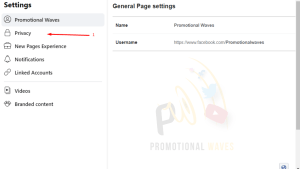
Click on “Settings” located at the corner of your page. Scroll down until you see the “General” tab in the menu, on the left hand side.
Step 4: Remove Your Page:
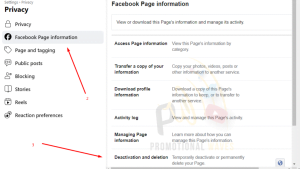
Within the “General” settings scroll down all the way to find the section labeled “Remove Page.” Click on the link that says “Delete [Your Page Name].”
Step 5: Confirm Deletion:
Facebook will present you with a confirmation message. To complete the deletion process click on “Delete Page.”
Please remember that once you delete the page it cannot be undone. So make sure you genuinely want to proceed with the deletion.
 Step 6: Enter Your Password:
To ensure security Facebook will prompt you to enter your password. Simply provide the password linked to your account to confirm the deletion.
Step 7: Confirmation:
Facebook might present confirmation prompts to double check if you are absolutely certain, about deleting the page. Just follow any instructions displayed on the screen to complete the process.
Facing Problem in Delete a facebook page Contact us on Facebook. Our Facebook ID: Promotional Waves
Get Facebook Services in lowest price.
FAQ’s:
How can I delete a Facebook page without being an admin?
Answer:
Regrettably it’s not feasible to delete a Facebook page unless you have administrator privileges. Facebook has implemented this restriction to prevent removal of pages. If you find yourself in a situation where you need to delete a page but don’t have access your best bet is to reach out to an existing admin and kindly request their assistance, in the deletion process. Alternatively you could try persuading the administrators to transfer ownership of the page to your account. Once thats done you’ll be able to delete the page as the admin.
Explanation:
Deleting a Facebook page is a step taken to prevent misuse or unauthorized removal. Facebook only allows administrators to delete a page ensuring that the process is intentional and aligns with the intentions of those, in charge of the page.
If you do not have access to the page you want to delete it limits your ability to directly perform this action. In cases it is advisable to communicate with administrators. Request their assistance, in deleting the page. Alternatively ask them to transfer ownership of the page to your account. Once ownership is transferred you will gain admin privileges. Can proceed with the deletion.